-
Courses

Courses
Choosing a course is one of the most important decisions you'll ever make! View our courses and see what our students and lecturers have to say about the courses you are interested in at the links below.
-
University Life

University Life
Each year more than 4,000 choose University of Galway as their University of choice. Find out what life at University of Galway is all about here.
-
About University of Galway

About University of Galway
Since 1845, University of Galway has been sharing the highest quality teaching and research with Ireland and the world. Find out what makes our University so special – from our distinguished history to the latest news and campus developments.
-
Colleges & Schools

Colleges & Schools
University of Galway has earned international recognition as a research-led university with a commitment to top quality teaching across a range of key areas of expertise.
-
Research & Innovation

Research & Innovation
University of Galway’s vibrant research community take on some of the most pressing challenges of our times.
-
Business & Industry
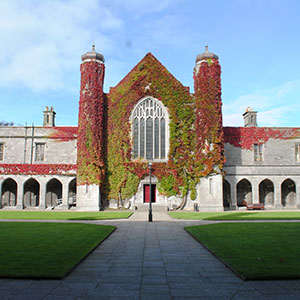
Guiding Breakthrough Research at University of Galway
We explore and facilitate commercial opportunities for the research community at University of Galway, as well as facilitating industry partnership.
-
Alumni & Friends

Alumni & Friends
There are 128,000 University of Galway alumni worldwide. Stay connected to your alumni community! Join our social networks and update your details online.
-
Community Engagement

Community Engagement
At University of Galway, we believe that the best learning takes place when you apply what you learn in a real world context. That's why many of our courses include work placements or community projects.
 Accessibility & Language
Testimonials
Accessibility
The Testimonial Heading is a H4, to comply with Accessibility requirements you will need to have a H2 and a H3 above the Testimonial. I am providing those headings within this Content (no title). You can check your page layout by using the Label Elements Bookmarklet.
Image Information
Tip: Make sure the filename does not contain any spaces, and the file name has at least 3 characters (before the dot) or it might not upload.
Also, remove any characters that are reserved for web addresses ( ! * ' ( ) ; : @ & = + $ , / ? % # [ ] ) or you may not be able to browse to the file once it's uploaded.
You need to fully comply with copyright law. Ensure that you have the right to use any images you upload or insert onto your webpage. Further information is available on our Images FAQ page - Where can I find Images to use on my website.

Evan Ryder | University WWW Technologist
To add a testimonial content type, you need a square image (ideally 130px x 130px) on your machine (not in the media library)
How do I add a Testimonial to my webpage?
Have your image prepared and saved to your computer. Your image should be a square image, ideally 130 x 130px.
- Go to the section where you wish to add a 'Testimonial' content type
- Click the +Add content button

- Choose 'Testimonial' from the list of content types
- Fill in the Name field - this should be the First name of the person's testimonial
- Fill in the Last Name field - this should be the surname of the person's testimonial
- Fill in the Occupation field
- Add text to the Quote Text field, providing the information you want the testimonial to say
- Click on the Drop file here or click to choose to choose an image from your computer (130x130px is the recommended size).

Once chosen click Open to insert the image. - You can add your LinkedIn Profile URL too, this is optional
- Click Save changes to put your content on Pending

Or,
Click on the small arrow beside Save changes and choose Save and approve to approve your content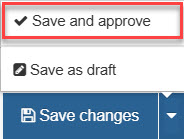
Note: You change a page's width (and other options) using its section's DC.Keywords field - see my interactive demonstration for full information.