-
Courses

Courses
Choosing a course is one of the most important decisions you'll ever make! View our courses and see what our students and lecturers have to say about the courses you are interested in at the links below.
-
University Life

University Life
Each year more than 4,000 choose University of Galway as their University of choice. Find out what life at University of Galway is all about here.
-
About University of Galway

About University of Galway
Since 1845, University of Galway has been sharing the highest quality teaching and research with Ireland and the world. Find out what makes our University so special – from our distinguished history to the latest news and campus developments.
-
Colleges & Schools

Colleges & Schools
University of Galway has earned international recognition as a research-led university with a commitment to top quality teaching across a range of key areas of expertise.
-
Research & Innovation

Research & Innovation
University of Galway’s vibrant research community take on some of the most pressing challenges of our times.
-
Business & Industry
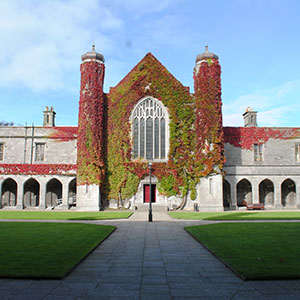
Guiding Breakthrough Research at University of Galway
We explore and facilitate commercial opportunities for the research community at University of Galway, as well as facilitating industry partnership.
-
Alumni & Friends

Alumni & Friends
There are 128,000 University of Galway alumni worldwide. Stay connected to your alumni community! Join our social networks and update your details online.
-
Community Engagement

Community Engagement
At University of Galway, we believe that the best learning takes place when you apply what you learn in a real world context. That's why many of our courses include work placements or community projects.
 Accessibility & Language
Show/Hide Holder
Show/Hide Holder Name (Required)
The Show/hide holder is great for FAQs or long lists of services.
Note: Ensure any heading you use in a Show/Hide holder item is H4 or lower. If you use Heading 3 any subsequent Show/Hide items you add will not appear on your page.
You can add as many ‘Show / Hide item’s as you like. Give each one a name, and fill in the question and answer. Answers are rich-text so you can include links and images, etc.
You need to add an Anchor ID for each FAQ, this can help you to direct someone to a specific FAQ. For example, https://www.universityofgalway.ie/t4training/examples/show-hide-holder/#item2 will bring you to the second item on this page. (You do not include the # in your Anchor id.)

How do I add Show/Hide items to my page?
- Go to the section you wish to add the content too and click Edit section on the Actions button dropdown menu
- Click on +Add Content

- Choose the content type 'Show/Hide Holder' - this is required to make the Show/Hide Item content type to work.
- Give the Show/hide holder a Name
- If you have any introductory/explanatory text you wish to add to your page you can use the Intro field
- Click Save changes to put your content on Pending

Click on the small arrow beside Save changes and choose Save and approve to approve your content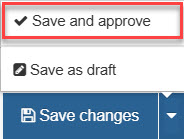
- Click on +Add content again
- Choose the content type 'Show/Hide Item' - you will need one of these for each FAQ
- Give the Item a Name
- Add the FAQ question in the Question field
- Add the FAQ answer in the Answer field
- Add an Anchor id - each anchor id should be in all lowercase letters; unique to any other anchors on the page; and be relevant to that particular FAQ
- Click Save changes to put your content on Pending
Click on the small arrow beside Save changes and choose Save and approve to approve your content - Follow steps 7 - 13 for each FAQ you wish to add to the page.