-
Courses

Courses
Choosing a course is one of the most important decisions you'll ever make! View our courses and see what our students and lecturers have to say about the courses you are interested in at the links below.
-
University Life

University Life
Each year more than 4,000 choose University of Galway as their University of choice. Find out what life at University of Galway is all about here.
-
About University of Galway
About University of Galway
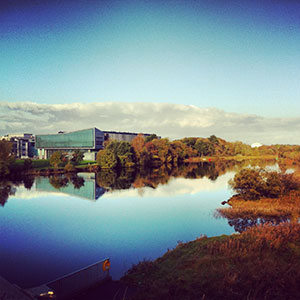
Since 1845, University of Galway has been sharing the highest quality teaching and research with Ireland and the world. Find out what makes our University so special – from our distinguished history to the latest news and campus developments.
-
Colleges & Schools
Colleges & Schools
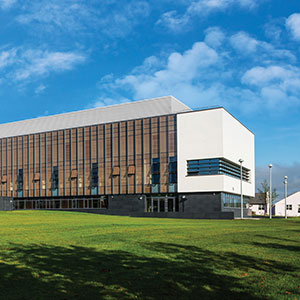
University of Galway has earned international recognition as a research-led university with a commitment to top quality teaching across a range of key areas of expertise.
-
Research & Innovation

Research & Innovation
University of Galway’s vibrant research community take on some of the most pressing challenges of our times.
-
Business & Industry
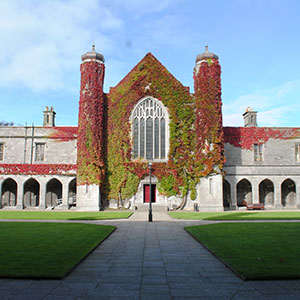
Guiding Breakthrough Research at University of Galway
We explore and facilitate commercial opportunities for the research community at University of Galway, as well as facilitating industry partnership.
-
Alumni & Friends

Alumni & Friends
There are 128,000 University of Galway alumni worldwide. Stay connected to your alumni community! Join our social networks and update your details online.
-
Community Engagement
Community Engagement
At University of Galway, we believe that the best learning takes place when you apply what you learn in a real world context. That's why many of our courses include work placements or community projects.
 Accessibility & Language
Print Service

The print service allows users to print, copy and scan documents using the Multi-Function Printers (MFP) located around campus. Print jobs can be sent to a Multi-Function Printer (often referred to as a 'Print Queue', i.e. when you click File, Print and select your printer) via PC's (PC Suite), Email (through your University of Galway e-mail account) or Wi-Fi (requires wireless package download).
Printing at University of Galway MFP's is a two step process
- Your print job has to be sent to a printer via the following methods: PC's (PC Suite), Email (through your University of Galway e-mail account) or Wi-Fi (requires wireless package download).
- Your print job then has to be released at a printer, by you, at which time the cost of printing will be taken from your Print Credit.
Who can use this service?
- Students
- Staff
- The service can also be used by members of the public via the Library Walk-in service
Users must have:
- A network attached PC or an a laptop with access to Eduroam.
- A valid Campus Account and sufficient print credit
- For email printing, the user must submit the job to uniprint@universityofgalway.ie
For Library walk-in users, they must purchase a Walk-In card, available at the vending machine located near the library entrance. They can then use any of the MFPs in the college.
Setup instructions
- In the General Access PC suites, all print queues are installed by default. Users can select which queue they wish to use: BW_Release - Black & White printing only, Colour_Release - colour printing. The print jobs are submitted to a release queue and you can visit any MFP to release and print your job, you will be charged once your job is released. If you are printing a colour job, ensure the printer you choose is a Colour_Release MFP or you can log in to https://uniprint.universityofgalway.ie/ to customize your print settings. Your print job will be available up to 24 hours after the job was submitted.
- In the Departmental PC suites, there may be printers available within the suite, you can use these to print your document by clicking File > Print and selecting the default printer (Departmental Printer). It is also possible to use the two MFP print queues mentioned above by choosing the one you wish to use. Please note print jobs sent to Departmental PC Suite printers do not need to be released and that once you confirm the Print Credit costs, your print job will print automatically.
Print Credit
Purchasing Print Credit Online
You can purchase print credit online at Printcredit.
- Click on 'Top-Up Your Own Credit'.
- Input your User ID and your Campus Account Password.
- Click on 'Online Top-up'.
- Fill in the amount you wish to credit to your account (€10.00 minimum) and you will be redirected to a secure payment page for you to enter your credit or debit card details.
The print credit will be immediately added into your account.
Purchasing Print Credit From Cash Kiosks
Credit can also be purchased from Print Kiosks located in: the Print Release Room 104, Chemistry, opposite the Arts and Science PC Suite in the Arts & Science Building, the front foyer in the Cairnes' Building, the Engineering Building and also in the James Hardiman Library.
- Scan your card or login manually using the touch screen monitor.
- Your balance will be displayed, insert the notes or coins to credit your account.
- Your balance will be updated on the screen and available to user immediately.
Checking Credit Balance
You can check your print credit balance online at Printcredit.
.png)
The UniPrint service allows users to print, copy and scan documents using the Multi-Function Printers (MFP) located around campus. Print jobs can be sent to a Multi-Function Printer using the UniPrint Portal or at PC's (PC Suite), Email (through your University of Galway e-mail account) or Personal email (max file size is 30MB)
Your print job then has to be released at a printer, by you, at which time the cost of printing will be taken from your Print Credit.
UniPrint can be accessed from any device, whether on-campus or off-campus, including PCs, laptops, mobile phones, tablets, and other devices. You can submit print jobs using either (max file size is 30MB):
Users must have:
-
- UniPrint can be accessed from any device, whether on-campus or off-campus, including PCs, laptops, mobile phones, tablets, and other devices.
- A valid Campus Account and sufficient print credit
- For email printing, the user must submit the job either directly on the UniPrint Portal, or from their University email or personal email
Printing from Non University Email in Default Settings (Black & White)
For fast, straightforward printing with default settings
- Create or Use an existing email from any email account (gmail, yahoo, outlook e.t.c)
- Attach the document you wish to print (maximum 30MB attachment size)
- Send it to: uniprint@universityofgalway.ie
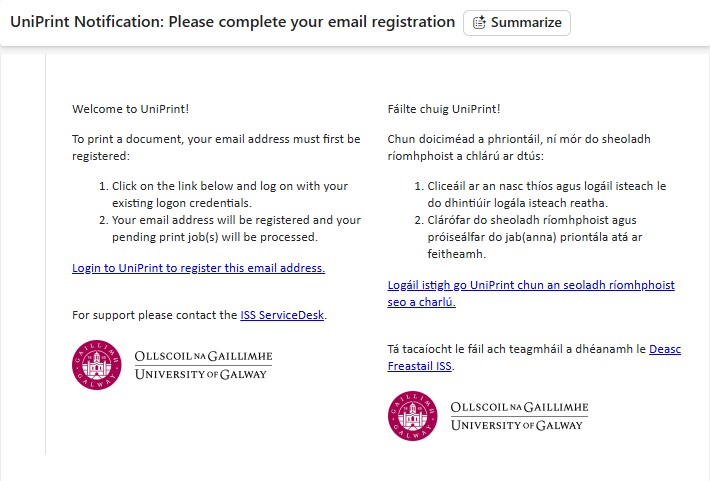
- Check your inbox for a reply email containing a link to register your personal email address to your University campus account
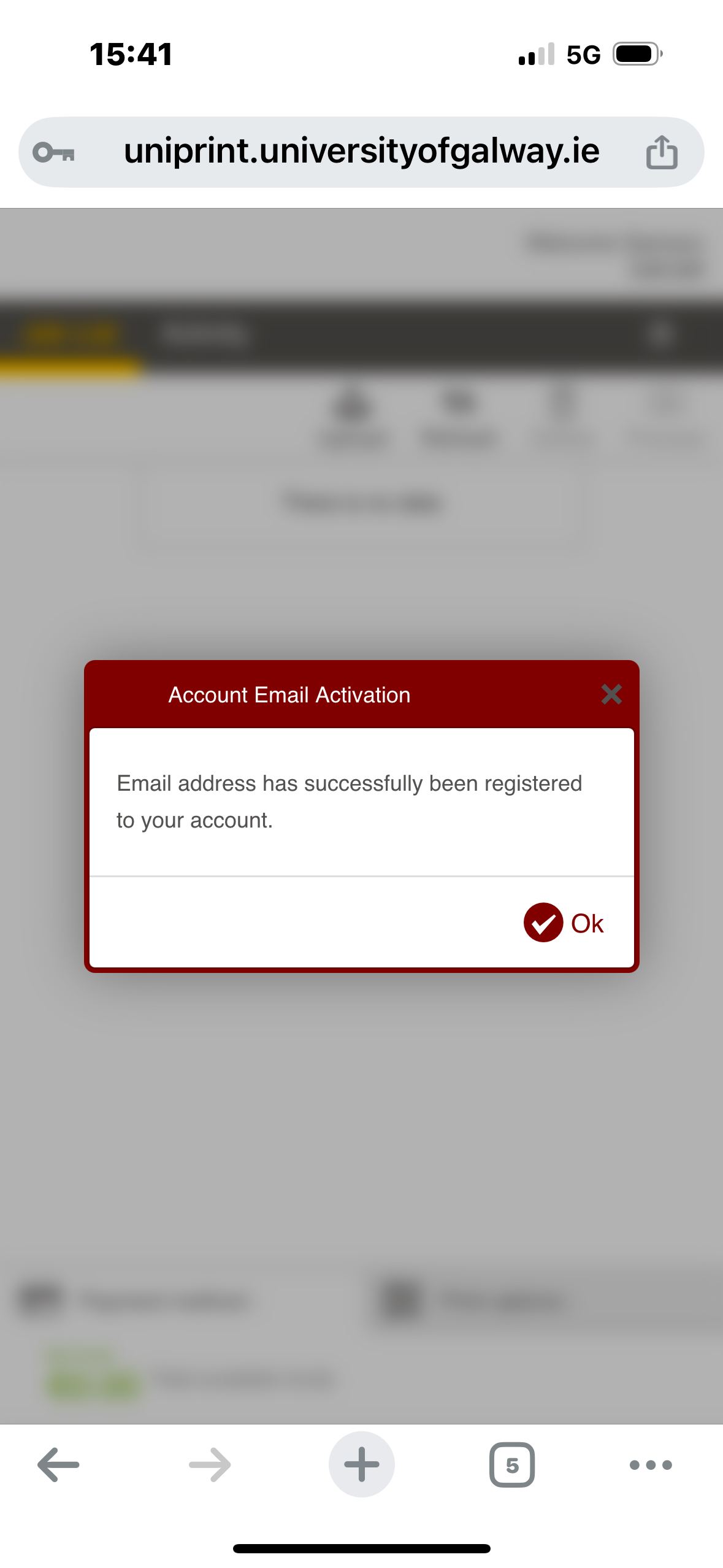
- Once you successfully Sign in using your campus ID, you will get a notification
- Proceed to print your document or customize the print settings on the portal to suit your need.
N.B: Your document will be printed with default settings: black and white, single-sided if you not change the settings on the portal - Release your print job at any Print Release Station, see locations here.
Printing with Customised Settings (Optional)
For printing with specific requirements
- Create an email from any email account as outlined above
- Attach the document(s) you wish to print (maximum 30MB attachment size)
- Send it to: uniprint@universityofgalway.ie
- If using a non-University email: Check your inbox for a reply email containing a link to connect your personal account to your University campus account
- Visit the UniPrint portal at https://uniprint.universityofgalway.ie
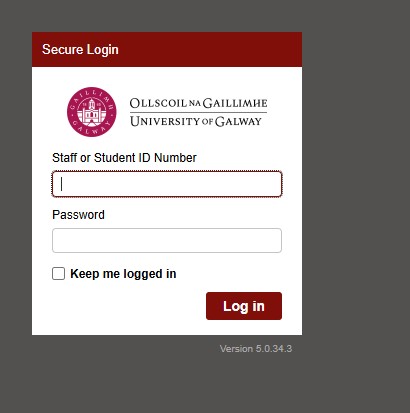
- Log in using your Campus Account Staff or Student ID (not email address) and password
- Modify your settings:
- Single-sided or duplex (double-sided) printing
- Number of copies
- Colour or black and white printing
- Release your job at any Print Release Station, see locations here.
Printing Directly from the Portal
For direct file uploading without email
- Visit the UniPrint portal at https://uniprint.universityofgalway.ie
- Log in using your staff/student ID (not email address) and password
- Upload your document directly (maximum 30MB file size)
- Configure your print settings:
- Single-sided or duplex (double-sided) printing
- Number of copies
- Colour or black and white printing
- Submit your print job
- Release your print job at any Print Release Station, see locations here.
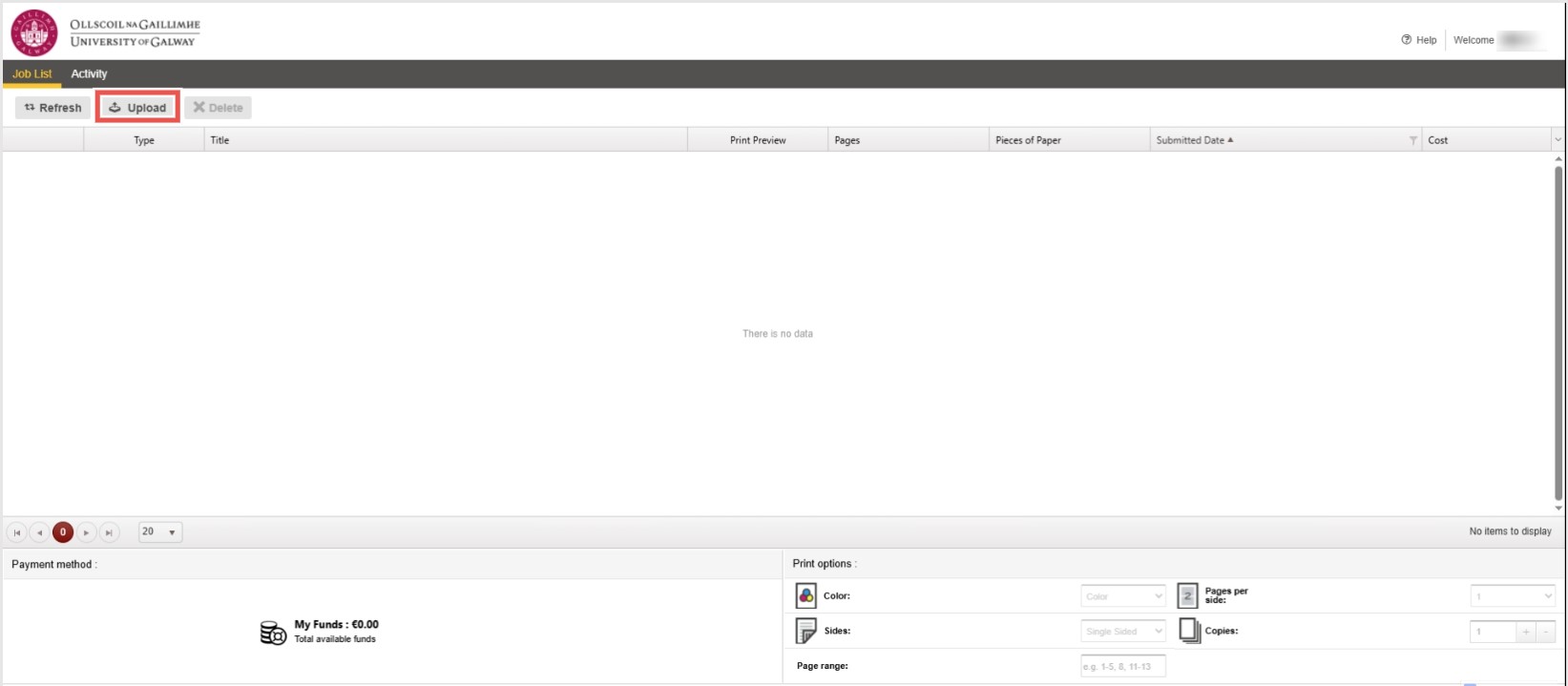
Click upload to select your document
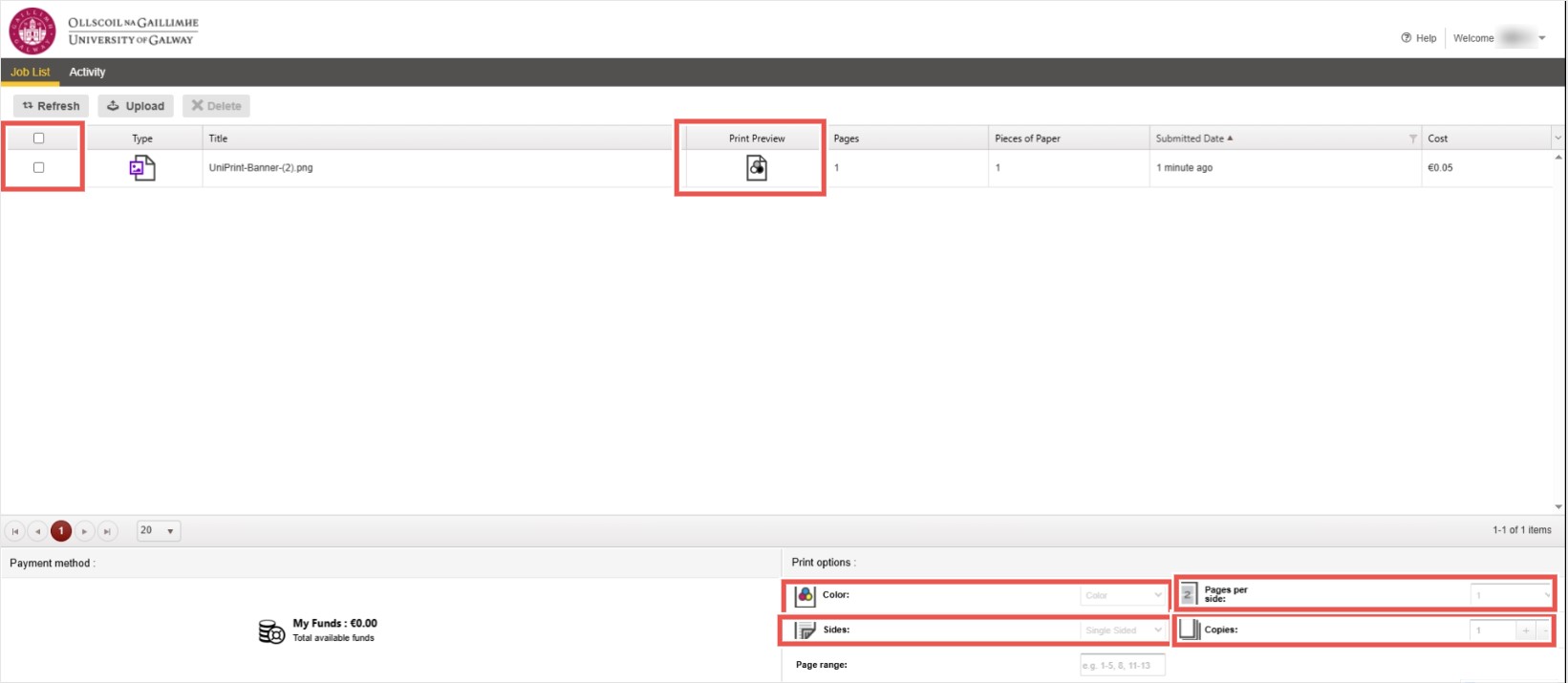
Change print settings such as colour or black and white, single or double-sided (duplex), and the number of copies.
N.B: Default print colour is Black and White. You will have to change to colour if you need your document in colour
Email Printing
Email Printing allows you to submit a print job by attaching a document to an email. The email is then sent to one of two email addresses (Black and white or Colour).
What do I need to use email printing?
You must submit your print email from an University of Galway email account. It can be submitted from a PC, either on-campus or off-campus. You can also submit email print jobs from any mobile device, such as laptop, iPhone, Android phones, iPads etc. The only requirement is that you are logged into your University of Galway email account.
How do I print using email printing?
Do the following:
- Log into your University of Galway email account
- Create an email
- Attach the document you wish to print (see below for a list of document types which can be printed)
- Send it to one of the following email addresses:
- bwprint@
 universityofgalway.ie (for monochrome printing)
 - colourprint@universityofgalway.ie (for colour printing)
- bwduplexprint@universityofgalway.ie (for double-sided monochrome printing)
- colourduplexprint@universityofgalway.ie (for double-sided colour printing)
- bwprint@
- Release your print job at any Print Release Station - see campus map on the NUIG Mobile App for printer locations.
What documents can I print with email printing?
You can print the following document types:
- Microsoft Office documents (Word, Excel & Powerpoint)
- Openoffice (Doc, Spreadsheet & Presentation)
- JPG, GIF, PNG, TIF, BMP
Features & Restrictions
- Apple image files have a filetype = JPEG. These cannot be printed
- A 17MB attachment limit applies to these documents
- If your email signature contains any graphics, such as the college logo, the print server will also see this as an attached document and submit it for printing. This occurs when the image size is greater than 6 kilobytes in size. You can, of course, choose not to print it when releasing the document you wish to print
- All document will be printed single-sided (simplex)
University Staff having a University managed PC can install print service to print directly from their PC. To install print service
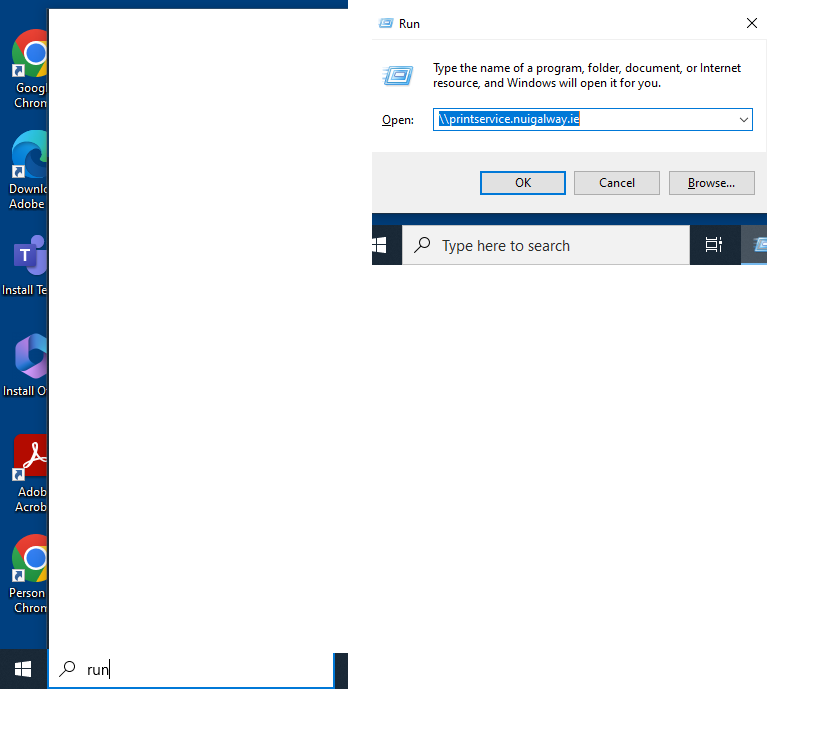
Search for 'Run' (without the quote) and type in the dialogue box
\\printservice.nuigalway.ie
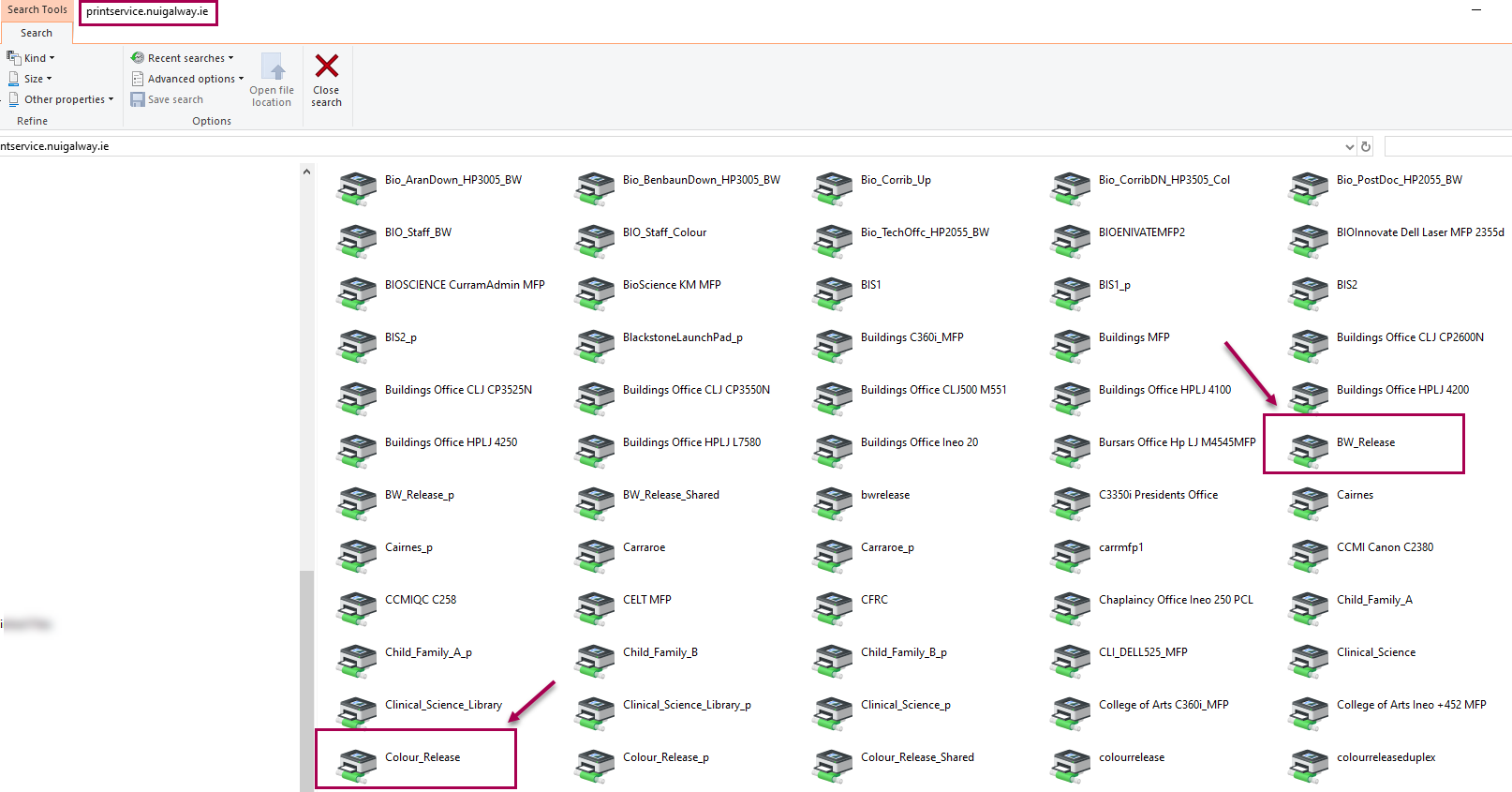
Once the window open, look for and double-click BW_Release (for Black and White print) and thereafter Colour_Release (for Colour print)
Wi-Fi Printing
Wi-Fi printing is available to users connected to the Eduroam network.
Who can use the service?
Staff or students that are connected to the Eduroam network.
What do I need to access the service?
- Print Credit - it can be purchased from print kiosks or via the online print credit system.
- Eduroam connection - connect your Macintosh or Windows laptop following these instructions.
- Wireless Print Package*
You MUST install a wireless print package. Click the relevant link for details on
(i) how to install the wireless print queue package and
(ii) how to print to a wireless print queue*. - The wireless print package will install two print queues on your laptop: Wireless_BW_Release & Wireless_Colour_Release.
Important - Print jobs sent to wireless print queues
Jobs sent to wireless release queues don't print directly They are held in the wireless release queue for 24 hours until released by you from a print release station. Click this link for full details on print release stations and their location.
* Note: Your Campus Account User ID and Password are required to submit print jobs to the Wireless Release Queues and to release them from print release stations.
Removing the Wireless Print Package
Wireless print package can be removed by following these instructions. This typically only takes a few minutes to complete.
How do I send a file to a print queue with installed Printer?
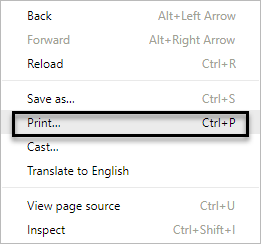
- Right click (or press Ctrl + P on your keyboard) to print a document
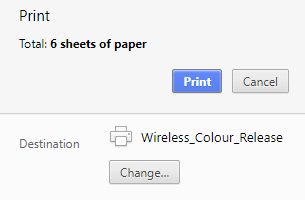
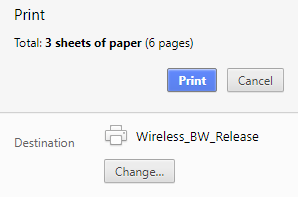
- Select either Wireless_BW_Release or Wireless_Colour_Release
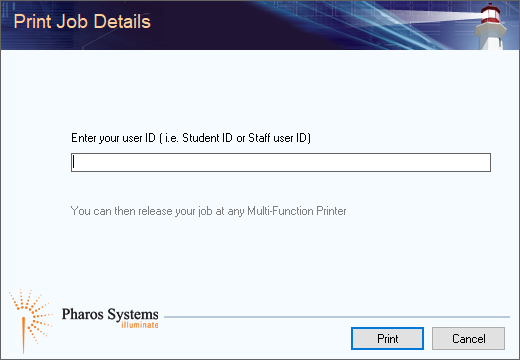
- Enter your campus account ID number when prompted.
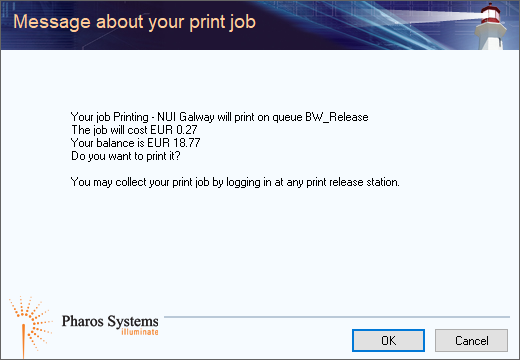
- You will be asked to confirm that you accept the charges on your print credit account, click 'OK' if you would like to print.
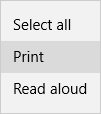
Microsoft Edge instructions:
- Right click (or press Ctrl + P on your keyboard) to print a document
- Select either Wireless_BW_Release or Wireless_Colour_Release
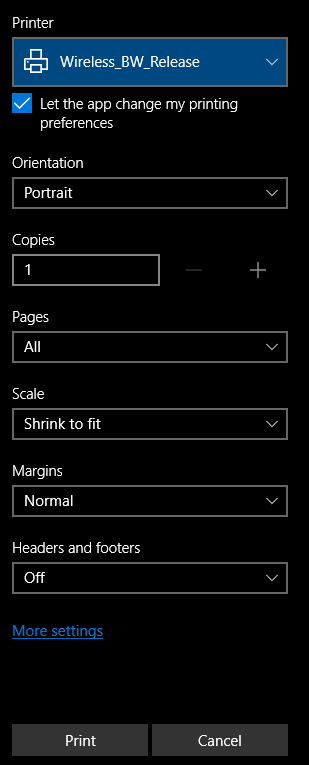
- Enter your campus account ID number when prompted.
- You will be asked to confirm that you accept the charges on your print credit account, click 'OK' if you would like to print.
Internet Explorer instructions:
- Right click (or press Ctrl + P on your keyboard) to print a document
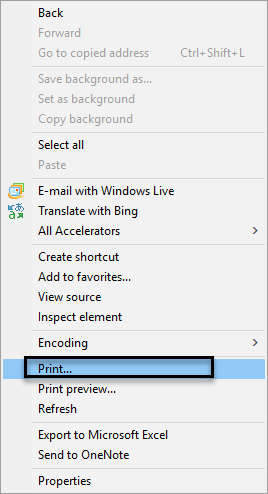
- Select either Wireless_BW_Release or Wireless_Colour_Release and click Print.
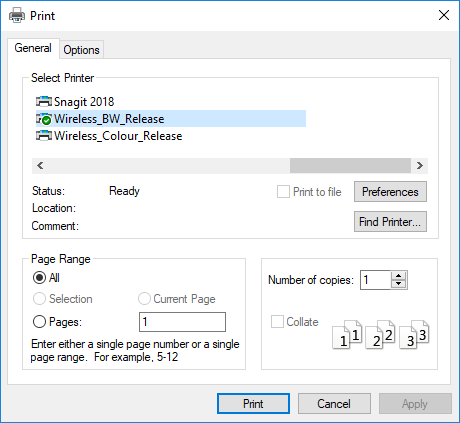
- Enter your campus account ID number when prompted.
- You will be asked to confirm that you accept the charges on your print credit account, click 'OK' if you would like to print.
Print Credit
Students must purchase Print Credit before printing
Staff must be associated with a Budget Code/Cost Centre before printing
Purchasing Print Credit Online
You can purchase print credit online at printcredit.nuigalway.ie.
- Click on 'Top-Up Your Own Credit'.
- Input your User ID and your Campus Account Password.
- Click on 'Online Top-up'.
- Fill in the amount you wish to credit to your account (€10.00 minimum) and you will be redirected to a secure payment page for you to enter your credit or debit card details.
The print credit will be immediately added into your account.
Checking Credit Balance
You can check your print credit balance online at printcredit.nuigalway.ie.
Purchasing Print Credit From Cash Kiosks
Credit can also be purchased from Print Kiosks located in: the Print Release Room 104, Chemistry, opposite the Arts and Science PC Suite in the Arts & Science Building, the front foyer in the Cairnes' Building, the Engineering Building and also in the James Hardiman Library.
- Scan your card or login manually using the touch screen monitor.
- Your balance will be displayed, insert the notes or coins to credit your account.
- Your balance will be updated on the screen and available to user immediately.
Checking Credit Balance
You can check your print credit balance online at printcredit.nuigalway.ie.
Costs for printing
Print Cost
| A4 Black and White | A4 Colour |
| €0.08 per single-sided page | €0.20 per single-sided page |
| €0.12 per double-sided page | €0.30 per double-sided page |
| A3 Black and White | A3 Colour |
| €0.16 per single-sided page | €0.40 per single-sided page |
| €0.24 per double-sided page | €0.60 per double-sided page |
Copy Cost
| A4 Black and White | A4 Colour |
| €0.08 per single-sided page | €0.20 per single-sided page |
| €0.12 per double-sided page | €0.30 per double-sided page |
| A3 Black and White | A3 Colour |
| €0.16 per single-sided page | €0.40 per single-sided page |
| €0.24 per double-sided page | €0.60 per double-sided page |
Scan Cost
| A4 Black and White | A4 Colour |
| €0.01 per single-sided page | €0.01 per single-sided page |
University of Galway has a fully managed print service for the supply, installation and maintenance of Multifunction Printers (MFP) and the replenishment of paper and other consumables such as toner. The current supplier is MJ Flood.
The service is available to all units and is recommended to all units as the most cost-effective method of ensuring a reliable and cost-effective print service. There is no capital outlay for these devices; departments agree in advance to pay a monthly bill based on actual usage, i.e., pay per page printed, copied, or scanned. ISS will issue monthly bills to the relevant department, requesting payment via an internal transfer.
Through the Managed Print Service (MPS), MJ Flood takes primary responsibility for meeting the customer’s office printing needs, including the printing equipment, supplies, service, and overall management of the printer fleet.
How to Obtain the Service
- Log on to the ISS Service Desk Ticketing System and create a ticket by choosing Request Type ’08 Printing’ and the category ‘Request Managed Printer’.

This must be completed by the budget holder or a University of Galway staff member who has written authorisation from the budget holder to proceed with and authorise monthly transfers.
- MJ Flood, the supplier, will contact and arrange a site visit to establish print requirements, and they recommend a suitable device.
- Once agreed, MJ Flood will install the device and train departmental users.
A nominated person within the department will become the Print Cost Centre manager. This person is responsible for granting/revoking permission to individuals within the department to charge printing/copying/scanning activities to the departmental budget.
Cost
An initial once-off fee per MFP covers software licensing and other necessary charges. The current fee is €320 plus VAT (Jan 2018)
The per-use charges are as follows: -
Print / Copy
|
A4 Black and White |
A4 Colour |
|
€0.05 per single-sided page |
€0.10 per single-sided page |
|
€0.09 per double-sided page |
€0.18 per double-sided page |
|
A3 Black and White |
A3 Colour |
|
€0.10 per single-sided page |
€0.20 per single-sided page |
|
€0.18 per double-sided page |
€0.38 per double-sided page |
Scan
|
A4 Black and White |
A4 Colour |
|
€0.01 per single-sided page |
€0.01 per single-sided page |
|
€0.02 per double-sided page |
€0.02 per double-sided page |
Other Services
All in the University can also avail themselves printing services at the PC Suite stations. PC Suite desktops have a number of print queues available. The default print queue is for an A4 black and white printer usually located in the PC Suite. Print jobs sent to it print out directly to the printer e.g. the print queue Arts_Science is for the printer in the Arts & Science PC Suite. A small number of PC suites also contain printers that can produce A3-sized printouts.